Proxmox Integration
Manage Proxmox VE PVE nodes and LXC containers with GoDoxy. This integration provides node-level monitoring, container lifecycle management, power operations, and resource monitoring
Overview
GoDoxy integrates with Proxmox VE to:
- Auto-discover PVE nodes and LXC containers across clusters
- Monitor node-level statistics (CPU, memory, disk, load average)
- Perform power operations (start, stop, restart, suspend, resume) on containers
- Monitor container statistics (CPU, memory, network, disk I/O)
- Stream journalctl logs from nodes, containers, and services
- Enable idle sleep for energy-efficient container management
Supported Features
| Feature | Description |
|---|---|
| Node Discovery | Automatically discover all nodes in Proxmox cluster |
| Node Monitoring | Real-time node stats (CPU, memory, disk, load average) |
| Node Journalctl | Stream system logs from PVE nodes |
| Container Journalctl | Access container and service logs via journalctl |
| Container Lifecycle | Start, stop, shutdown, suspend, resume, reboot |
| Resource Monitoring | Real-time stats streaming (like docker stats) |
| Idle Sleep | Automatically sleep idle containers |
Quick Start
Step 1: Create API Token
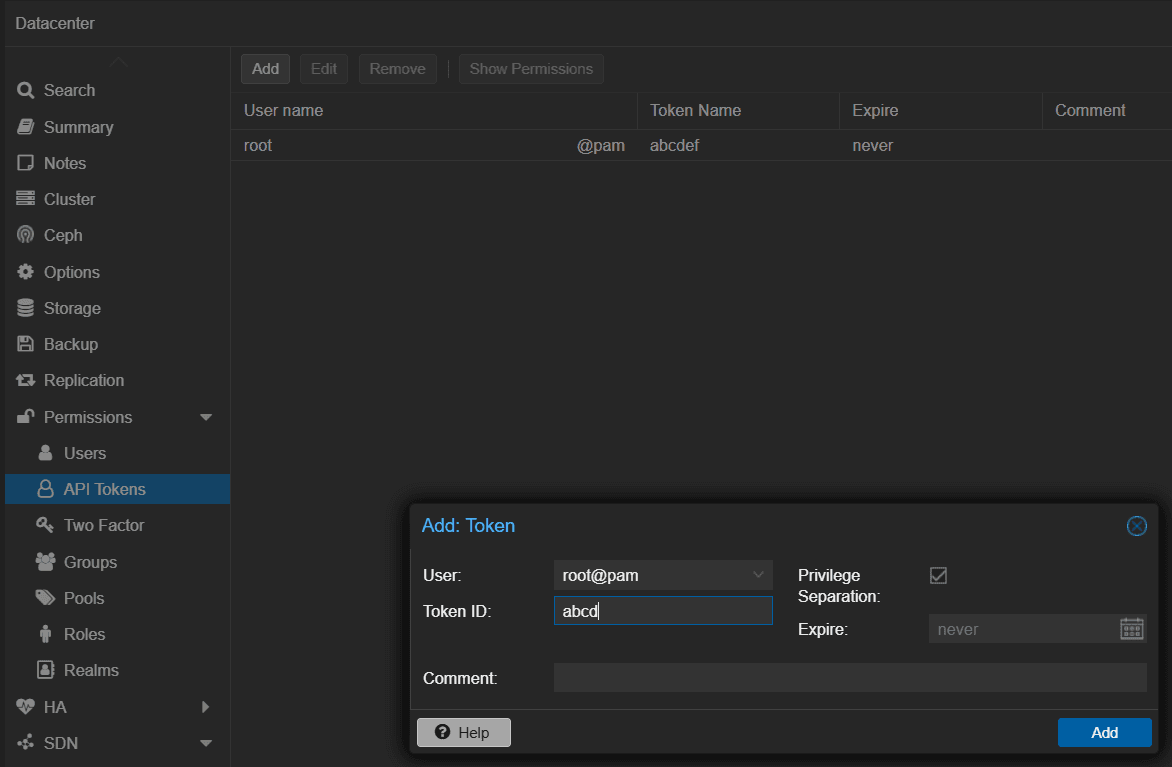
Create an API token in Proxmox VE:
- Navigate to Datacenter > API Tokens
- Click Add
- Select a user (e.g.,
root@pam) - Enter a token name (e.g.,
godoxy) - Copy the Token ID and Secret
Step 2: Configure Permissions
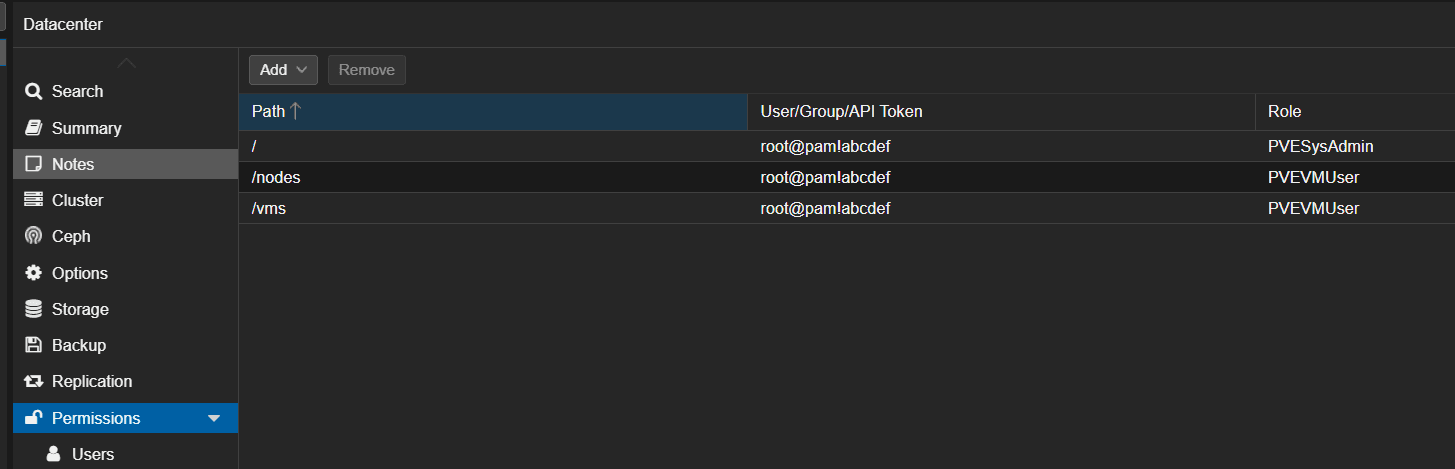
Grant the following permissions to your API token:
VM.Audit- View container configurationVM.Console- Access container consoleVM.Monitor- Monitor container statusVM.PowerMgmt- Power operationsSys.Audit- View node status
Step 3: Add Provider to config.yml
# config.yml
providers:
  proxmox:
    - url: https://pve.domain.com:8006
      token_id: root@pam!godoxy-token
      secret: your-api-token-secret
      no_tls_verify: false
Step 4: Configure Routes
Reference Proxmox containers in your route files:
# config/services.yml
my-lxc:
  host: 10.0.9.50
  port: 3000
  proxmox:
    node: pve
    vmid: 119
  homepage:
    name: My LXC App
    category: Development
:::info
The vmname field is automatically populated by GoDoxy from the Proxmox API and should NOT be set manually in route configuration.
:::
Configuration Reference
Provider Configuration
| Property | Description | Required |
|---|---|---|
url | Proxmox API URL | Yes |
token_id | API token ID | Yes* |
secret | API token secret | Yes* |
username | Username (for WebSocket auth) | No** |
password | Password (for WebSocket auth) | No** |
realm | Authentication realm | No** |
no_tls_verify | Disable TLS verification | No |
* Either token_id/secret or username/password is required
** Required for WebSocket operations (command execution, journalctl)
Route Configuration
route:
  host: example.com
  port: 443
  proxmox:
    node: pve # Node name from Proxmox cluster
    vmid: 119 # LXC container ID
service: nginx # Optional: service name for journalctl| Field | Description | Required |
|---|---|---|
node | Node name from Proxmox cluster | Yes |
vmid | LXC container ID | Yes |
service | Service name for journalctl logs | No |
vmname | Automatically populated from Proxmox API | No (auto) |
The vmname field is populated automatically by GoDoxy from the Proxmox API and should not be set manually.
How LXC Containers Link to Routes
The proxmox configuration creates a link between a GoDoxy route and a Proxmox LXC container. There are two ways to establish this link:
1. Automatic Discovery (Reverse Lookup)
When no proxmox config is specified, GoDoxy automatically discovers the container by looking up the route's alias/hostname/IP against known Proxmox resources:
# No proxmox config needed - discovered automatically!
nginx: # matches lxc/node with name "nginx"
  host: nginx1.lxc.local # route hostname, matches lxc/node with name "nginx1"
  port: 3000
app2:
  host: 10.0.9.50 # route IP address, matches lxc/node with IP 10.0.9.50
  port: 3000
pve: # matches lxc/node with name "pve"
  host: 10.0.0.1 # route IP address, matches lxc/node with IP 10.0.0.1
  port: 8006
  no_tls_verify: true # disable TLS verification
GoDoxy will:
- Query all configured Proxmox providers
- Look up the route's
host(oralias) against node names, VM names, and IP addresses - Automatically populate
proxmox.node,proxmox.vmid, andproxmox.vmname
This works for:
- Node names (e.g.,
pve,pve1) - VM names (e.g.,
lxc-app,webserver) - IP addresses (container IPs from Proxmox)
2. Explicit Configuration
You can manually specify the Proxmox container / node:
# explicitly specify the container
my-lxc:
  host: 10.0.9.50
  port: 3000
  proxmox:
    node: pve # Proxmox node name
    vmid: 119 # LXC container ID
# explicitly specify the node
pve:
  host: 10.0.0.1
  port: 8006
  no_tls_verify: true
  proxmox:
    node: pve # Proxmox node name
What Gets Linked
| Linked Data | Source | Usage |
|---|---|---|
| Container Name | Proxmox API (vmname field) | Display in WebUI, API responses |
| IP Addresses | Proxmox API (interfaces + config) | Health checks, reachability |
| Status | Proxmox API (running/stopped/suspended) | Power controls, idle watcher |
| Service Name | User config (service field) | Journalctl log filtering |
Once configured, the route will:
- Show node / container status in the WebUI Servers tab
- Allow starting/stopping the container from the UI
- Stream container logs via
/api/v1/proxmox/journalctl/pve/119/nginx - Support idle sleep if configured
Finding Node Name and VMID
Node Name: Locate the node hosting your LXC in the Proxmox UI.
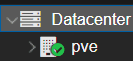
VMID: Find the container ID in the Proxmox node summary.

Authentication Options
API Token (Recommended)
providers:
  proxmox:
    - url: https://pve.domain.com:8006
      token_id: root@pam!godoxy
      secret: aaaa-bbbb-cccc-dddd
Username/Password (Required for WebSocket)
providers:
  proxmox:
    - url: https://pve.domain.com:8006
      username: root
      password: your-password
      realm: pam
Use username/password authentication when you need:
- Command execution inside containers
- Journalctl log streaming
API Endpoints
GoDoxy exposes the following REST API endpoints for Proxmox management:
Statistics
| Endpoint | Method | Description |
|---|---|---|
/api/v1/proxmox/stats/:node | GET | Node statistics (supports streaming) |
/api/v1/proxmox/stats/:node/:vmid | GET | Container statistics (supports streaming) |
Logs
| Endpoint | Method | Description |
|---|---|---|
/api/v1/proxmox/journalctl/:node | GET | Node journalctl (WebSocket) |
/api/v1/proxmox/journalctl/:node/:vmid | GET | Container journalctl (WebSocket) |
/api/v1/proxmox/journalctl/:node/:vmid/:service | GET | Service-specific logs (WebSocket) |
Container Operations
| Endpoint | Method | Description |
|---|---|---|
/api/v1/proxmox/lxc/:node/:vmid/start | POST | Start container |
/api/v1/proxmox/lxc/:node/:vmid/stop | POST | Stop container |
/api/v1/proxmox/lxc/:node/:vmid/restart | POST | Restart container |
For more details, see API Reference.
Node-Level Monitoring
GoDoxy supports monitoring PVE nodes directly, independent of container routes. This enables you to monitor the host system even when no LXC containers are configured.
Node Statistics
Access node-level statistics at /api/v1/proxmox/stats/:node:
# Get current stats
curl "https://godoxy.example.com/api/v1/proxmox/stats/pve"

# Stream stats continuously (like docker stats)
curl -N "https://godoxy.example.com/api/v1/proxmox/stats/pve"
Available Metrics:
| Metric | Description |
|---|---|
cpu_usage | Current CPU usage percentage |
cpu_model | CPU model name |
mem_usage | Used memory (IEC format: KiB, MiB, GiB) |
mem_total | Total memory |
mem_pct | Memory usage percentage |
rootfs_usage | Used root filesystem space |
rootfs_total | Total root filesystem space |
rootfs_pct | Root filesystem usage percentage |
uptime | Node uptime (human-readable format) |
load_avg_1m | 1-minute load average |
load_avg_5m | 5-minute load average |
load_avg_15m | 15-minute load average |
kernel_version | Linux kernel version |
pve_version | Proxmox VE version |
Node Journalctl
Stream system logs from PVE nodes:
# Stream all node journal logs
websocat "wss://godoxy.example.com/api/v1/proxmox/journalctl/pve"

# Stream specific service logs (e.g., pveproxy for the web UI)
websocat "wss://godoxy.example.com/api/v1/proxmox/journalctl/pve/pveproxy"

# Last 100 lines only
websocat "wss://godoxy.example.com/api/v1/proxmox/journalctl/pve?limit=100"
Query Parameters for Journalctl:
| Parameter | Description | Default |
|---|---|---|
limit | Number of historical lines | 0 (streaming only) |
service | Service unit name (for container logs) | - |
Note: Journalctl streaming requires username/password authentication in the provider configuration.
Idle Sleep Integration
GoDoxy can automatically sleep idle Proxmox LXC containers and wake them on traffic. This is ideal for development environments or services with unpredictable usage.
Basic Configuration
my-dev-container:
  host: 10.0.9.50
  port: 3000
  proxmox:
    node: pve
    vmid: 119
  idlewatcher:
    idle_timeout: 1h
    wake_timeout: 60s
With Dependencies
lxc-app:
  host: 10.0.9.50
  port: 3000
  proxmox:
    node: pve
    vmid: 119
  idlewatcher:
    idle_timeout: 30m
    depends_on:
      - lxc-db

lxc-db:
  host: 10.0.9.51
  port: 5432
  proxmox:
    node: pve
    vmid: 120
See Idle Sleep for detailed configuration options.
WebUI Features
The GoDoxy WebUI provides:
- Server Management: View and manage Proxmox nodes
- Node Stats: Real-time monitoring (CPU, memory, disk, load average)
- Container Stats: Real-time monitoring (CPU, memory, network)
- Power Controls: Start, stop, restart containers
- Log Access: Stream node and container logs via WebSocket
Troubleshooting
Connection Issues
Error: failed to fetch proxmox cluster info- Verify URL is accessible from GoDoxy server
- Check firewall rules for port 8006
- Ensure TLS certificates are valid or set
no_tls_verify: true
Authentication Failures
Error: authentication failed- Verify token ID format:
user@realm!token-name - Check token permissions in Proxmox
- For WebSocket operations, ensure username/password is configured
Container Not Found
Error: proxmox node 'pve' not found- Verify node name matches Proxmox cluster
- Check that the node is online in Proxmox
- Review API token permissions for that node
WebSocket Operations Fail
Error: no session found, make sure username and password are set- WebSocket operations require username/password authentication
- Add
usernameandpasswordto provider config - Ensure the user has appropriate permissions
Performance Considerations
- Cluster info fetched once on startup
- Resources updated every 3 seconds in background
- Concurrent IP resolution (limited to GOMAXPROCS * 2)
- 5-second timeout for initial connection
- WebSocket connections properly closed to prevent goroutine leaks
Security Best Practices
- Use API tokens instead of username/password when possible
- Limit token permissions to minimum required
- Enable TLS verification in production
- Restrict network access to Proxmox API port
- Rotate tokens regularly